
Overview
This article explains how to manage package information, including saving and updating custom dimensions and utilizing carrier-provided parcel templates, when creating shipping labels through the Shippo integration in Brandboom.
How-to
NOTE: Make sure Shippo is connected to your Brandboom account. If you haven't done this, follow the instructions here.
Save a New Custom Dimension Template
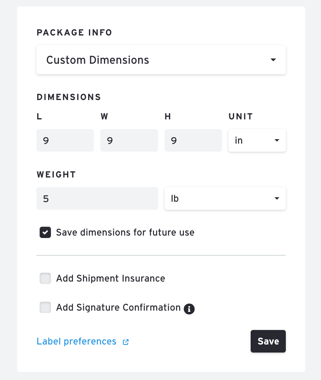
If you are entering Custom Dimensions and want to save them for future use:
-
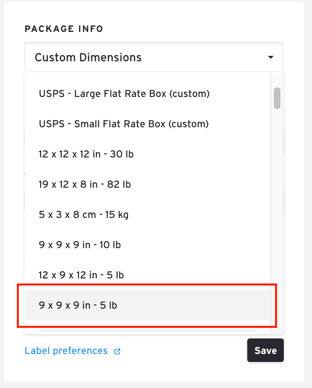
After entering dimensions and finding rates, a new template will appear in the dropdown list.
-
The template will be named using the format: "L x W x H unit - weight unit". For example, if you enter 9 inches for length, width, and height, and 5 pounds for weight, the saved template will be "9 x 9 x 9 in - 5 lb".
Update a Custom Template
To update a previously saved custom template:
-
Choose the custom template from the dropdown list.
-
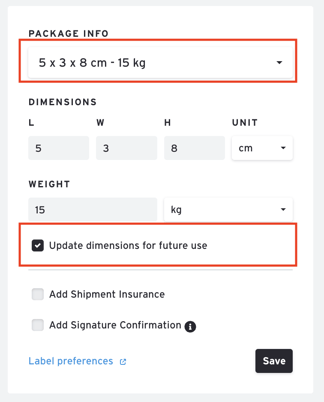
Check the box labeled “Update dimensions for future use.”
-
Modify the dimensions and weight as needed.
-
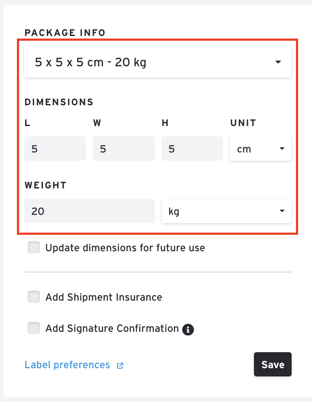
The existing template will be updated with the new dimensions; it will NOT create a new template.
-
For example, if you update the dimensions of a template named "5 x 3 x 8 cm - 15 kg" to L = 5cm, W = 5cm, H = 5cm, and weight = 20kg, the template will then become "5 x 5 x 5 cm - 20kg".
-
 .
. 
Choose a Parcel Template from a Partnered Carrier (e.g., USPS)
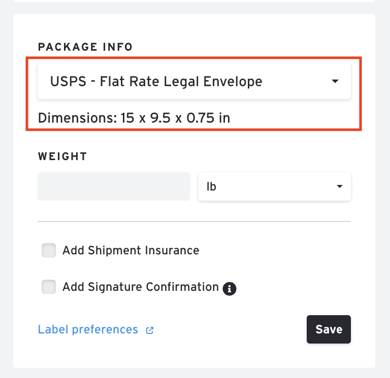
When choosing a parcel template from a partnered carrier (like USPS):
-
The dimensions are pre-set, and you will typically only be able to add the weight.
-
You will not be able to save a custom template from this option.
If you have any questions or concerns, please feel free to contact our support team at support@brandboom.com.